
Drawsy: AR Draw for Sketching
estuArt & Design
4.4160.00 Reviews
- Version
- 2.7.0
- Installs
- 100.00K
- Age Rating
- Everyone
Screenshots
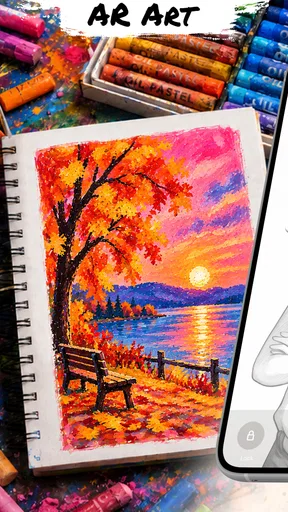
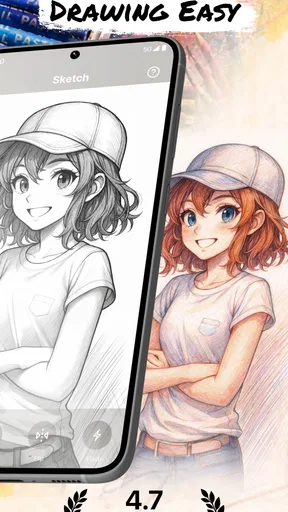
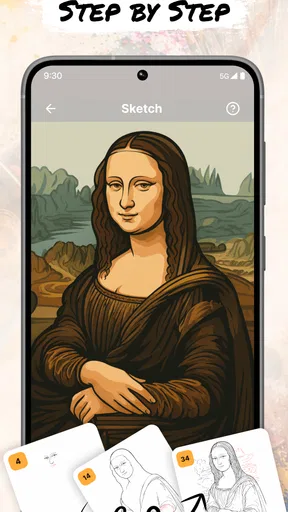

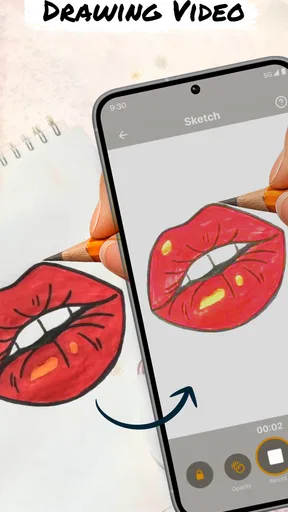
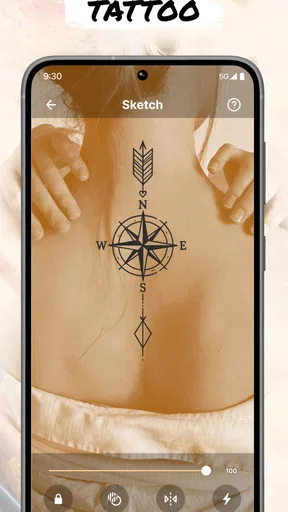
Our Review of Drawsy: AR Draw for Sketching
 Analysis by Appyee
I found Drawsy interesting because it tackles a familiar drawing problem from a practical angle: getting a reference image onto paper without spending ages trying to copy its proportions by eye. It is an Art & Design app from estu that uses augmented reality to place an image in your drawing space, so you can follow its visible lines with a pencil or pen. In my experience, that makes it less like a traditional digital sketchbook and more like a guided tracing tool for physical artwork.
The appeal is immediate. You choose an image, position the phone, and work on the paper beneath the displayed reference. That sounds simple, and the basic idea is simple, but the quality of the experience depends on how quickly you can arrange the scene, how steady the phone remains, and whether the final drawing still feels like your own work. I would recommend it most to beginners, hobby artists, parents looking for a low-pressure creative activity, and anyone who wants to turn a favorite picture into a hand-drawn outline.
It is free to install and aimed at Everyone, although optional in-app purchases range from $1.99 to $49.99 per item. The app has reached over 100 thousand installs and holds a 4.0 average from around 1.5 thousand ratings, which suggests a useful but not universally perfect experience. Its current version is 2.5.0, and it requires Android 10 or later. Those details matter because AR drawing is more demanding than opening a normal image editor: the phone has to handle the camera view, the overlay, and the physical setup at the same time.
How Drawsy feels during real drawing sessions
I find the most useful way to judge an AR drawing session is to separate the quality of the guide from the comfort of the setup: a clear reference helps, but a steady phone and room to move your hand matter just as much. That distinction is especially helpful when deciding whether a quick sketch is enough or whether you should prepare a more deliberate workspace.
Fast to understand, but setup determines the pace
The strongest part of the concept is the short distance between opening the app and starting a sketch. You do not need to learn layers, brushes, paths, or complicated editing tools before making something. The main task is choosing a reference and arranging it over the surface where you want to draw. For a first attempt, that directness is much less intimidating than a full digital illustration app.
Still, “quick” does not mean instant in every situation. The drawing itself may begin promptly, but the preparation can take longer if your phone is difficult to position. A table, a suitable stand, and even lighting can make a noticeable difference. If the device is lying flat or held at an awkward angle, your hand may block the screen or the image may become uncomfortable to follow. The app reduces the difficulty of copying shapes; it does not remove the physical challenge of arranging a stable workspace.
I found the best workflow was to decide the paper size before opening the camera view. A loose sheet on a desk is easier to adjust than a notebook that keeps moving. I also recommend placing the phone where you can see the reference without leaning over the paper. That small change improves both speed and accuracy because you are not constantly shifting your wrist to check the screen.
For simple subjects, the process feels pleasantly direct. A cartoon face, a leaf, a basic object, or a bold logo-like shape can be approached without much hesitation. Detailed photographs are a different matter. The AR overlay can show more information than you realistically want to reproduce, so the initial speed advantage becomes less important when you are deciding which lines deserve attention.
What happens when the session becomes demanding
Longer sessions reveal the trade-off behind this kind of app. The phone is not just displaying a still reference; it is showing the camera view while maintaining an image in the scene. That makes the experience more dependent on the device and the environment than a standard gallery or drawing app. I would not judge the app only by how quickly it opens. The more useful question is whether the setup remains comfortable after several minutes of tracing.
For heavier use, I would prepare the workspace first and avoid treating the phone as something to hold continuously. A simple support keeps the camera angle consistent and leaves both hands available for the paper and pencil. It also makes recovery easier if you pause. Instead of rebuilding the entire composition after putting the phone down, you can return to the same position and continue checking the reference.
This is also where the difference between a rough sketch and a careful illustration becomes clear. The app can guide placement, but it cannot make a fine pencil tip, smooth paper, or patient hand unnecessary. When I worked with larger, uncomplicated shapes, the overlay felt helpful rather than restrictive. With crowded details, I had to slow down and interpret the image rather than mechanically follow every visible edge.
That is an important strength, not just a limitation. Drawsy can teach observation when used thoughtfully. I would first trace only the largest contours, then add a few internal landmarks, and finally remove the phone to inspect the paper on its own. This three-stage approach prevents the reference from becoming a crutch and helps reveal whether the drawing works without the overlay.
Stability depends on the physical environment
AR tools are naturally sensitive to movement. If the phone shifts, the reference may no longer sit exactly where you expect it on the page. That is not a defect unique to this app, but it changes how I would use it. A handheld session is fine for a quick outline; a careful portrait or architectural sketch deserves a fixed setup.
I would also avoid placing the phone too close to the drawing area. A little distance gives your hand more room and makes small movements less disruptive. The trade-off is that the reference becomes smaller, so the ideal position is a compromise between visibility and freedom of movement. This is one of the less obvious practical lessons: the best arrangement is not necessarily the one that makes the image largest.
When something goes wrong, the sensible recovery is to pause rather than continue drawing against a displaced guide. Check the phone position, straighten the paper, and re-establish the same viewpoint before adding more lines. If you continue after the overlay has moved, the error can spread through the entire sketch. Drawsy makes tracing easier, but it rewards the same discipline as traditional drawing: correct the foundation early.
Resource demands and device limitations
Because the app relies on the camera and augmented-reality presentation, I would be more cautious about older or entry-level phones than I would be with a basic sketchpad app. The minimum operating-system requirement is Android 10, so devices below that threshold are not suitable. On a compatible phone, the practical question is whether the camera view remains comfortable and responsive during use.
I would not choose Drawsy for a device that already struggles with camera-heavy applications. A phone with limited free storage, a weak battery, or a screen that is difficult to see under your room lighting can make the session frustrating even if the app itself is functioning properly. The app is free to try, so the sensible approach is to test it with a short drawing before planning a long project or buying optional content.
Battery awareness is worthwhile too. A camera-based drawing session can be more demanding than browsing a static reference image, especially if you spend a long time adjusting the composition. I would begin with a reasonably charged phone and keep the screen brightness high enough to see the overlay without making the display unnecessarily harsh. These are ordinary precautions, but they have a bigger effect here than they would in a conventional art app.
The physical screen size also changes the experience. A larger display gives you more room to inspect the reference, while a smaller phone is easier to position but may make details harder to distinguish. If you are drawing on a large sheet, the relationship between screen size, phone distance, and image scale becomes especially important. Drawsy is most comfortable when the reference is clear enough to guide you without forcing your face close to the device.
A realistic everyday use case
Imagine wanting to make a handmade birthday card but not feeling confident enough to draw a recognizable pet or character from memory. I would place the card stock on a table, support the phone above it, select a suitable reference, and begin with the outer silhouette. After that, I would add only the features that make the subject identifiable, such as the eyes, ears, collar, or a distinctive pattern. Once the guide has done its job, I would put the phone aside and finish the lines, shading, and color by hand.
That workflow shows where the app fits best. It is not trying to replace the satisfaction of making artistic decisions. Instead, it gives you a starting structure so that your time goes into expression rather than repeatedly erasing a misplaced outline. For a child, the same process can turn a difficult blank page into an approachable activity, although an adult may need to help with phone placement and keeping the paper still.
Another useful scenario is practicing proportions. You can use a reference to sketch the broad shape, then hide or move away from the phone and redraw the subject from memory. Comparing the two versions gives you a simple exercise in visual recall. That makes the app more valuable than a one-time tracing shortcut, provided you deliberately reduce your dependence on the overlay.
Where it beats ordinary alternatives
Compared with a normal image viewer, Drawsy has a clear advantage: the reference is connected to the physical drawing surface instead of sitting separately on another screen. You do not have to look back and forth between a picture and paper while estimating every proportion. Compared with a standard digital drawing app, it offers a more tactile result because the finished work exists on paper and can be colored, displayed, or given away.
It is also more approachable than learning a full illustration package when the immediate goal is a hand-drawn copy. A digital app is better for undoing every stroke, editing layers, changing colors instantly, and producing a polished file. Drawsy is better when you want the feel of pencil on paper and need help with placement. Neither approach is universally superior; they support different kinds of creativity.
Traditional tracing paper remains a valid alternative. It can be more predictable, does not depend on camera positioning, and may be preferable for repeated transfers of the same design. On the other hand, AR guidance can be more flexible when you want to work directly on a notebook, canvas, card, or another surface without physically printing the reference. The choice comes down to whether convenience and adaptability matter more to you than a completely offline, device-free process.
Who should use it, and who should skip it
I think Drawsy is a good match for people who say, “I can imagine what I want to draw, but I cannot get the proportions right.” It is especially suitable for casual artists, beginners, craft projects, classroom-style activities, and anyone experimenting with physical sketches. The Everyone rating also makes it approachable for family use, though the phone setup still needs sensible supervision with younger children.
I would be less enthusiastic about it for artists who already have strong observational drawing skills and want a completely unassisted process. It may also be the wrong choice if your main goal is professional digital artwork, editable layers, vector output, or precise post-production. In those cases, a dedicated illustration tool offers more control and a more efficient finishing workflow.
People who dislike holding a phone near their workspace should think carefully before installing it. The app’s central benefit is also its main dependency: you need the device visible while you draw. If that arrangement feels distracting, a printed reference or a conventional easel setup may be more comfortable. Likewise, anyone using an Android device below version 10 will need another solution.
Free access and the purchase decision
The free entry point is useful because you can judge the setup before committing money. I would spend time testing a simple image, a small paper surface, and a longer session before considering any optional purchase. The listed in-app purchase range runs from $1.99 to $49.99 per item, so the difference between trying the basic experience and spending on extras is significant.
My advice is to identify the exact problem you want to solve first. If you only need occasional help outlining a birthday card or a small sketch, free access may be enough for your habits. If you expect to use the app frequently, examine whether the paid items genuinely improve your particular workflow rather than assuming that a purchase is necessary for good results. The value depends less on the price alone and more on how often you will use the AR approach.
I also would not buy anything simply because the first drawing feels imperfect. Early frustration often comes from phone placement, paper movement, or choosing an overly detailed reference. Improve those conditions first. A better-supported device and a simpler image can reveal whether the app suits you more accurately than an immediate purchase can.
My performance verdict
After looking at the complete experience, I see Drawsy as a focused tool rather than a general art platform. Its perceived speed is good when the reference is simple and the phone is already positioned. Its stability is closely tied to the physical setup, and its resource demands are naturally higher than those of a static image viewer because the camera view remains part of the workflow. Recovery is manageable when you stop early, correct the setup, and continue from a stable position.
The app’s 4.0 average from about 1.5 thousand ratings feels consistent with that balanced picture: the central idea is useful and approachable, but the experience will vary with the device, the drawing surface, and the user’s expectations. I would not describe it as a replacement for learning to draw. I would describe it as a bridge between looking at a reference and confidently making marks on paper.
My recommendation is to try it if your priority is getting a physical sketch started quickly, not producing a fully editable digital illustration. Give it a stable workspace, choose uncomplicated references at first, and use the overlay as a guide rather than a substitute for judgment. With that mindset, Drawsy from estu can make drawing feel less intimidating while still leaving room for your own line work and decisions.
Privacy and Permissions
See what permissions an app requests and how it handles your data.
- Photos/Media/Files
- read the contents of your USB storage, modify or delete the contents of your USB storage
- Storage
- read the contents of your USB storage, modify or delete the contents of your USB storage
- Camera
- take pictures and videos
- Microphone
- record audio
- Wi-Fi connection information
- view Wi-Fi connections
- Other
- view network connections, full network access, control vibration, prevent device from sleeping, Google Play license check, read Google service configuration
Verdict
Strengths of Drawsy: AR Draw for Sketching
- AR overlays make it easier to trace real-world subjects accurately.
- Helpful for beginners learning proportions, perspective, and basic sketching.
- Supports creative drawing projects using everyday surroundings as references.
- Portable alternative to carrying printed references or a lightbox.
- Can make practice sessions more engaging through interactive camera tools.
Limitations of Drawsy: AR Draw for Sketching
- Good lighting and a steady phone position are important for accurate tracing.
- Camera-based drawing can be difficult on small phone screens.
- AR alignment may shift when the device moves or tracking loses focus.
- Extended use may drain the battery and warm up the device.
- Some features or content may require purchases or contain advertisements.
Similar Picks in This Category
View All
Canva: AI Photo & Video Editor
Canva4.8

PENUP – Drawing-sharing SNS
Samsung Electronics Co., Ltd.4.5

Crafto
Kutumb App4.6

Sketchbook
Sketchbook4.1

ibis Paint X
ibis inc.4.5

Adobe Express: AI Photo, Video
Adobe4.6
Frequently Asked Questions
What is Drawsy: AR Draw for Sketching and how does it work?
Drawsy: AR Draw for Sketching is a mobile drawing tool that uses augmented reality to help you trace or sketch images in the real world. After choosing or importing a reference, the app overlays the artwork through your phone’s camera view. You can place your device on a stand, position the projected guide over paper or another surface, and follow the lines while drawing by hand.
Do I need any special equipment to use Drawsy effectively?
You do not usually need professional equipment to get started, but a stable phone stand or tripod is strongly recommended. Since the camera must remain fixed while you draw, holding the phone in your hand can make the reference move and affect accuracy. Good lighting, a flat drawing surface, and a compatible device with camera access also make the tracing experience considerably easier.
Can I use my own images in Drawsy: AR Draw for Sketching?
The app is designed around working with visual references, and depending on the available version and features, you may be able to select artwork from its library or import an image from your device. Personal images are useful for portraits, objects, logos, and creative practice. Before downloading, check the current app listing to confirm supported file types and whether importing images requires a premium upgrade.
Is Drawsy suitable for beginners, children, and experienced artists?
Drawsy is particularly approachable for beginners because it provides a visible guide instead of requiring you to estimate proportions from scratch. Children can also use it for supervised drawing activities, although camera permissions and in-app purchases should be reviewed by an adult. More experienced artists may find it helpful for planning, practicing perspective, or transferring a reference, but it is better viewed as a tracing aid than a replacement for drawing skills.
Is Drawsy: AR Draw for Sketching free to download, and does it include in-app purchases?
The download model, advertising, and premium options can vary by platform and app version, so you should review the current Google Play or App Store listing before installing. Some AR drawing applications provide basic tools free of charge while reserving additional references, image-import options, or an ad-free experience for paid users. Also check the subscription terms carefully if a trial is offered, especially the renewal and cancellation conditions.
